
Build Your First AI Chatbot - No-Code Guide
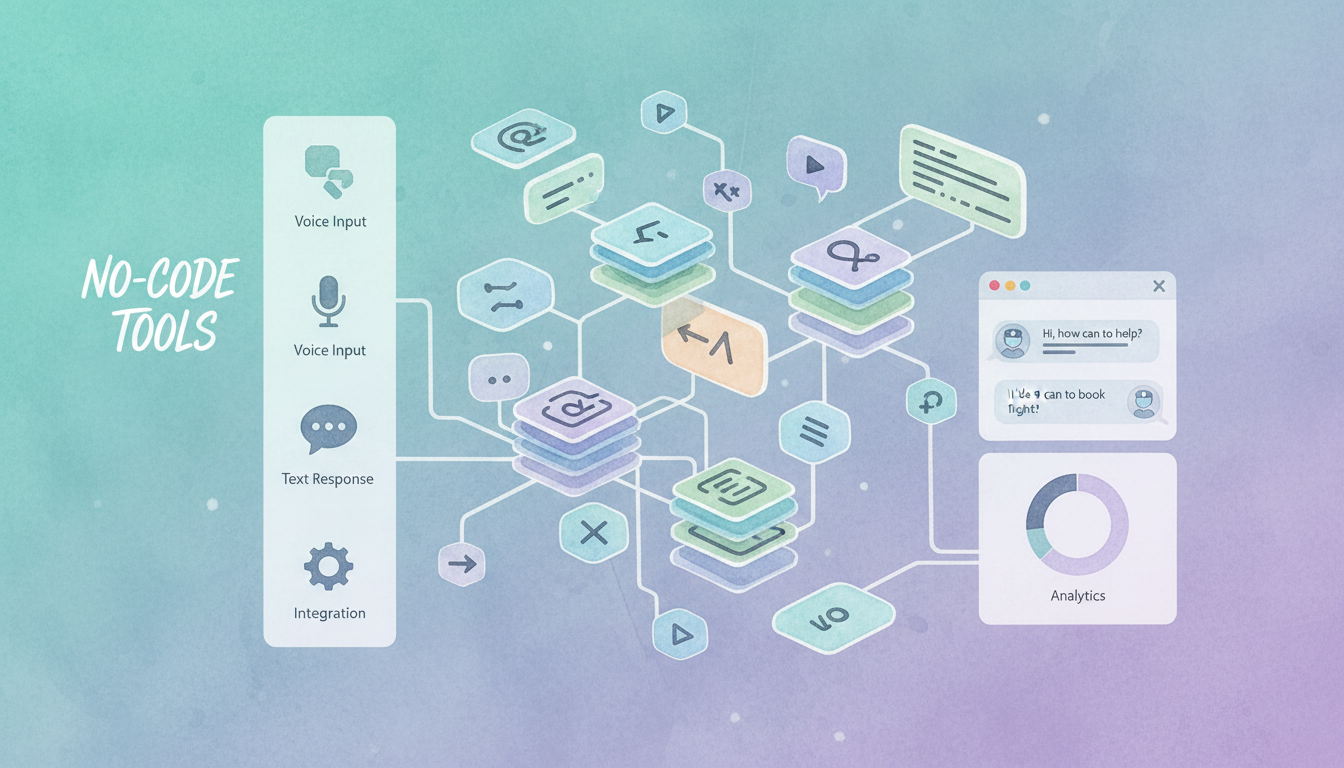
Build Your First AI Chatbot
AI chatbots are one of the highest-paying AI services you can offer. This tutorial teaches you to build a fully functional customer service chatbot without writing a single line of code.
What You'll Learn:
- Setting up a no-code chatbot builder
- Training your bot with business knowledge
- Connecting to OpenAI for smart responses
- Deploying to a website
Time Required: 30 minutes
Step 1: Choose Your Builder (3 minutes)
Recommended No-Code Platforms
| Platform | Best For | Pricing |
|---|---|---|
| Botpress | Complex bots | Free tier available |
| Voiceflow | Visual builders | Free for 2 projects |
| Chatbase | Simple FAQ bots | $19/month |
| Typebot | Lead generation | Free tier |
For this tutorial, we'll use Botpress (powerful + free tier).
Setup
- Go to botpress.com
- Click "Get Started Free"
- Sign up with Google or email
- Create your first bot → Name it "Customer Support Bot"
✅ Checkpoint: You have access to Botpress dashboard.
Step 2: Build the Conversation Flow (10 minutes)
Understanding the Flow
User Message → Intent Detection → AI Response → Follow-upCreate Your First Flow
- Delete the default flow content
- Add a "Start" node (already there)
- Add an "AI Task" node
- Connect Start → AI Task
Configure the AI Task
Click on your AI Task node and configure:
Task Type: Generate Text
Instructions:
You are a friendly customer support assistant for
[Business Name], a [type of business].

Your job is to:
1. Answer questions about our products/services
2. Help customers navigate our website
3. Collect contact information for complex issues
4. Be helpful, professional, and concise

If you don't know something, say: "Let me connect
you with our team for that. What's the best email
to reach you?"

Business Details:
- Products: [list main products/services]
- Hours: [business hours]
- Contact: [email/phone]
- Website: [url]
Step 3: Add Knowledge Base (8 minutes)
Why Knowledge Base Matters
Without training, your bot gives generic responses. With KB, it gives specific, accurate information.
Adding Knowledge
- Click "Knowledge Base" in left sidebar
- Click "Add Source"
- Choose your source type:
Option A: Website URL
https://yourbusiness.com(Botpress will crawl and learn from your site)
Option B: Text/FAQ
Q: What are your business hours?
A: We're open Monday-Friday, 9am-6pm EST.

Q: Do you offer refunds?
A: Yes, we offer full refunds within 30 days of purchase.

Q: How long does shipping take?
A: Standard shipping takes 5-7 business days.
Option C: PDF Upload Upload your existing FAQ documents, product catalogs, or training materials.
Training Tips
- Add at least 10-15 common questions
- Include your about page content
- Add pricing information
- Include contact details
✅ Checkpoint: Your bot has knowledge about the business!
Step 4: Add Smart Features (5 minutes)
Feature 1: Capture Emails
Before the AI response, add a "Capture" node:
Capture Type: Email
Variable: user_email
Message: "Before I help, can I get your email
in case we get disconnected?"
Feature 2: Handoff to Human
Add a trigger for complex issues:
If user says "talk to human" OR "speak to agent" OR "real person"
→ Send message: "I'm connecting you to our team.
   They'll respond within 24 hours."
→ Send notification to: support@business.com
→ Include: conversation history + user email
Feature 3: Suggested Quick Replies
Add buttons for common actions:
Quick Replies:
  - "What are your hours?"
  - "Track my order"
  - "Pricing information"
  - "Talk to a human"
Step 5: Test and Deploy (4 minutes)
Testing Your Bot
- Click "Test" or the chat icon in top-right
- Try common questions:
- "What are your hours?"
- "Do you offer refunds?"
- "I need help with my order"
- "Talk to a human"
- Refine responses as needed
Deploy to Website
- Click "Integrations" → "Web Chat"
- Customize appearance:
- Bot name
- Color scheme (match brand)
- Welcome message
- Avatar image
- Copy the embed code:
<script src="https://cdn.botpress.cloud/webchat/v2.1/inject.js"></script>
<script src="https://files.bpcontent.cloud/[YOUR-BOT-ID]/webchat/config.js"></script>- Add to website before
</body>tag
Alternative Deployment
- WordPress: Use Botpress WordPress plugin
- Shopify: Add to theme.liquid
- Wix/Squarespace: Use embed code block
✅ Checkpoint: Your chatbot is live!
Step 6: Sell This Service
Package Your Offering
Basic Package: $500-800 setup
- Simple FAQ chatbot
- Up to 20 knowledge sources
- Basic customization
- 1 platform integration
Pro Package: $1,500-2,500 setup
- Advanced conversation flows
- Unlimited knowledge base
- Email capture + CRM integration
- Multi-platform deployment
- 30 days support
Retainer: $200-500/month
- Monthly optimization
- Knowledge base updates
- Performance reporting
- Priority support
Finding Clients
- Local service businesses (HVAC, dental, real estate)
- E-commerce stores with high support volume
- SaaS companies with repetitive questions
- Healthcare practices
What's Next?
You've built a functional AI chatbot without code. Now scale it into a service.
Practice Projects:
- Build a restaurant reservation bot
- Create a real estate lead capture bot
- Design a product recommendation bot
Recommended Next Tutorials
- How to Make Money Building AI Chatbots — Full business guide
- Scale to $5K/Month — Grow your chatbot business
Quick Stats
- Difficulty: Intermediate
- Time to Complete: 30 minutes
- Time to First Client: 2-4 weeks
- Investment: Free (Botpress free tier)
- Potential Earnings: $500-$2,500/project